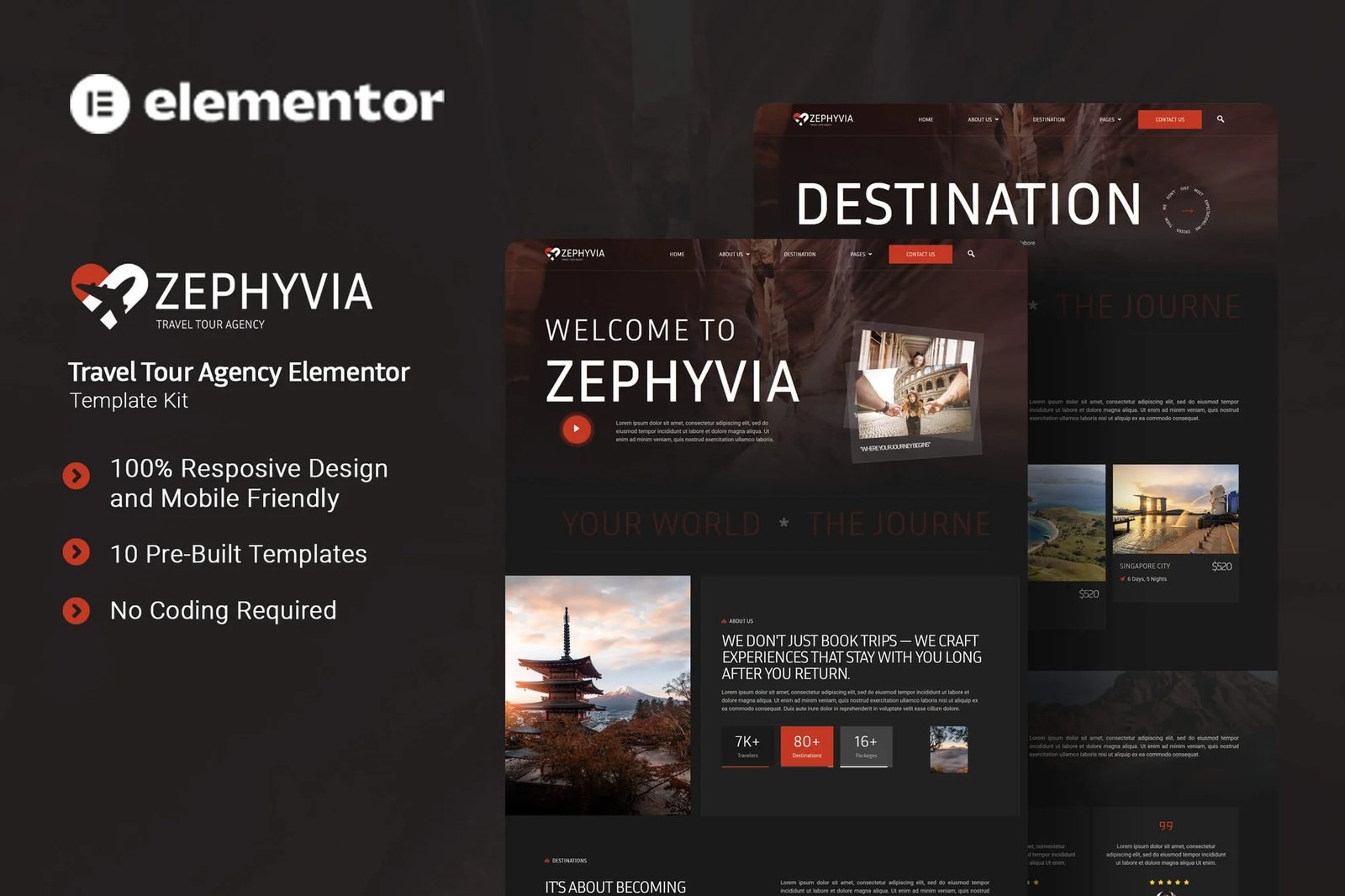
Zephyvia is an Elementor Template Kit crafted for travel tour agencies aiming to build a captivating and professional online presence. Ideal for tour operators, travel planners, and adventure organizers, this kit allows you to showcase stunning destinations, curated travel packages, and unforgettable experiences. With its modern and user-friendly design, Zephyvia helps you engage potential travelers, promote unique tour offerings, and inspire journeys across the globe with ease and elegance. Zephyvia uses free elements, so don?t worry about trying this one. Zephyvia provides various pages including Home, About Us, Tour Guide, Destinations, Tour Package, Package Detail, Services, FAQs, Testimonials, Blog, 404, Contact Us.
Features:
- True no-code customization with drag and drop visual builder
- Customize fonts and colors in one place or fine-tune on individual elements
- Modern, professional design
- Fast-loading
- Works with most Elementor themes.
Templates
- Home
- About Us
- Tour Guide
- Destinations
- Tour Package
- Package Detail
- Services
- FAQs
- Testimonials
- Blog
- 404
- Contact Us
Font Used
Plugins installed with kit
- Elementor
- ElementsKit Lite
- Jeg Elementor Kit
- Qi Addons For Elementor
- Metform
- Ultimate Addons for Elementor Lite
How to setup header in Jeg Elementor Kit plugin
If you have Elementor Pro, setup headers and footers in Theme Builder. Pages you create with Elementor must have the Page Layout set to Elementor Full width for the global header and footer to appear.
- Go to Jeg Elementor Kit menu item > Header Template
- Click Add New Header
- Add condition > All Site and click Create
- Click the pencil icon to Edit and elementor will appear
- Click gray folder icon to access My Templates tab
- Insert the header template.
- Customize and Save.
How to Import MetForm Custom Form:
- While edititing a page where a form should appear, open the Elementor navigator to locate the Metform widget.
- Click Edit Form in the builder panel.
- Select New, leave blank selected then click Edit Form button.
- Click ?Add Template? grey folder button.
- Click ?My Templates? tab.
- Choose your imported MetForm template, then click ?Insert?.
- Once the template is loaded, click ?Update?.










Reviews
There are no reviews yet.