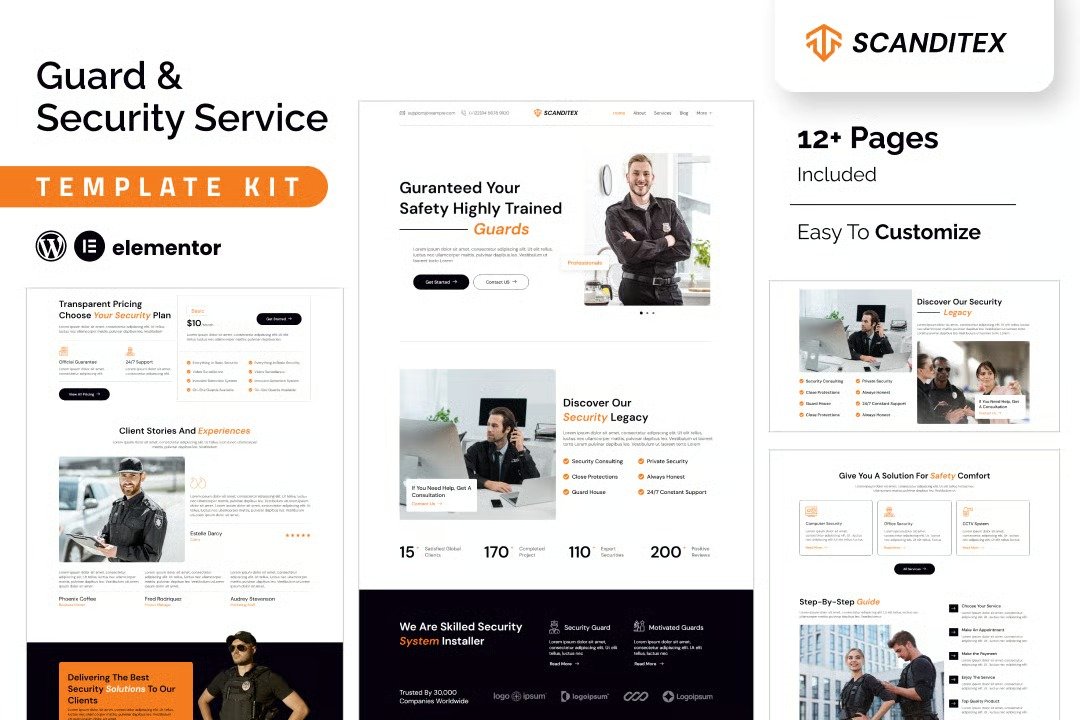
SCANDITEX is a specialized Elementor template kit designed for security solutions and alarm systems. Perfect for creating websites for bodyguards, CCTV services, private investigators, security agencies, and protection providers, SCANDITEX offers a curated selection of templates to meet your needs. Built entirely with the Elementor plugin, this kit is incredibly user-friendly and requires no coding knowledge. Optimized for the free Hello Elementor theme, SCANDITEX is also compatible with most Elementor-ready themes, making it the ultimate choice for a seamless and professional website.
Feature
- Individual elements can be fine-tuned or fonts and colors can be changed all in one spot.
- Drag-and-drop visual builder for true no-code customization.
- Design that is both contemporary and professional.
- Fast-loading.
- Most Elementor themes are compatible with this templatekits.
Templates Include:
- Home
- About
- Services
- Blog
- Blog Detail
- Contact
- Services Details
- Testimonials
- Pricing Plan
- Coming Soon
- 404
Sections and Blocks:
- Header
- Footer
- Contact Form
- Newsletter Form
- Coming Soon ewsletter
Required Plugins Pre-Installed With the Kit
- Elementor
- Jeg Elementor Kit
- Happy Elementor Addons
- MetForm
- The metform block templates should be imported.
- Import the page template with the form on it and enable the Navigator by right-clicking.
- Click Edit Form after locating and selecting the Metform widget. Then select New and Edit Form from the drop-down menu. The function Object() { [native code] } will show up.
- Select the grey folder icon that says ?Add Template?.
- Select the ?My Templates? option from the drop-down menu.
- Then click ?Insert? after selecting your imported metform template (click No for page settings).
- After you?ve finished customizing the template, click ?Update & Close.? In the template, the form will appear.
- Update the information by clicking the button.
- Go to the Jeg Elementor Kit menu item > Header Template.
- Click ?Add New Header?.
- Add condition > All Site and click ?Create?.
- Click the gray folder icon to access the ?My Templates? tab.
- Insert the header template.
- Customize and Save.








Reviews
There are no reviews yet.