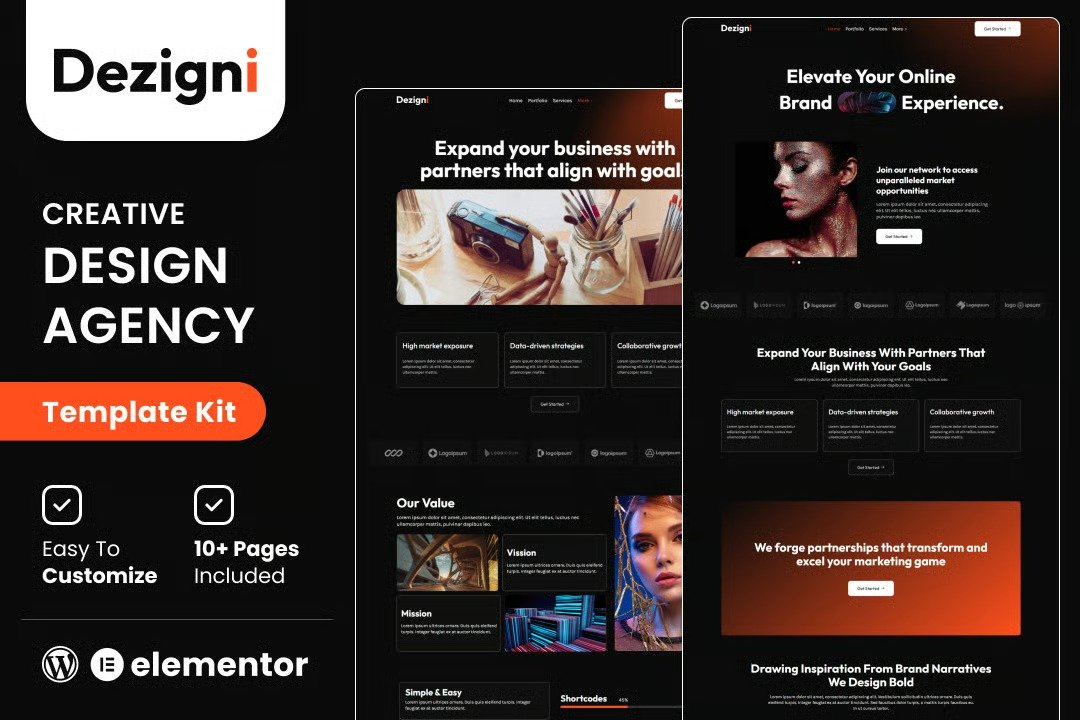
Dezigni is a sleek and modern Elementor template kit crafted for digital design agencies. With its clean layouts, dynamic visuals, and user-friendly customization, it?s perfect for showcasing your creative projects, services, and team. Designed to elevate your brand presence, Dezigni offers seamless responsiveness and effortless editing, making it an ideal choice for agencies aiming to stand out in the digital world.
Feature
- Individual elements can be fine-tuned or fonts and colors can be changed all in one spot.
- Drag-and-drop visual builder for true no-code customization.
- Design that is both contemporary and professional.
- Fast-loading.
- Most Elementor themes are compatible with this templatekit.
Templates Include:
- Home
- Portfolio
- Services
- About
- Pricing
- Contact us
- Portfolio Details
- Team
- Blogs
- Faq
- Testimonials
- Coming Soon
- 404
Sections and Blocks:
- Message Form
- Newsletter Form
Required Plugins Pre-Installed With the Kit
- Elementor
- Happy Elementor Addons
- Jeg Elementor Kit
- Metform
- The metform block templates should be imported.
- Import the page template with the form on it and enable the Navigator by right-clicking.
- Click Edit Form after locating and selecting the Metform widget. Then select New and Edit Form from the drop-down menu. The function Object() { [native code] } will show up.
- Select the grey folder icon that says ?Add Template?.
- Select the ?My Templates? option from the drop-down menu.
- Then click ?Insert? after selecting your imported metform template (click No for page settings).
- After you?ve finished customizing the template, click ?Update & Close.? In the template, the form will appear.
- Update the information by clicking the button.
- Import the template for the header and footer.
- Navigate to ElementsKit > Header Footer and select Add New (if prompted with a wizard, you may click Next through it without taking any action).
- Toggle Activation to On, title the header, and leave Entire Site selected.
- To open the builder, click the grey Edit Content button.
- Select the header template to import by clicking the grey folder icon, then select your menu in the nav element and click Update.
- Repeat for the footer.







Reviews
There are no reviews yet.