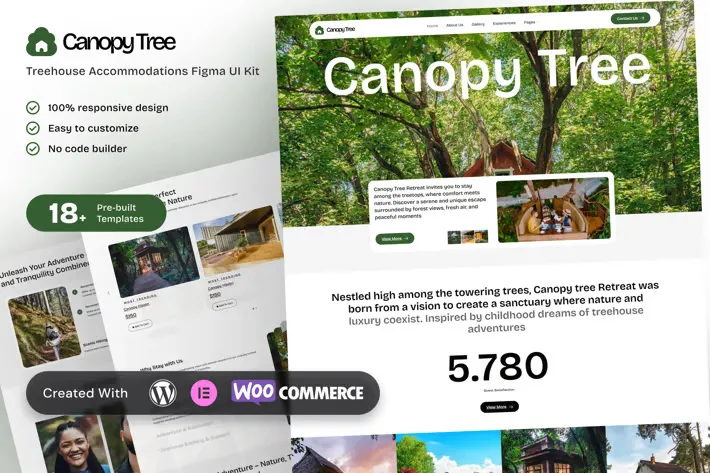
CanopyTree is a beautifully crafted Elementor Template Kit designed for treehouse accommodations, eco-lodges, and nature-based retreats. With a rustic yet refined layout, it helps property owners present their treehouse experience, amenities, and booking options in a natural and inviting way.
Ideal for eco-tourism operators, boutique stays, forest cabins, or mountaintop rentals, CanopyTree is built entirely with Elementor Free and optimized for performance, responsiveness, and ease of use.
Key Features:
- 18+ ready-to-use page templates
- Easy customization with Elementor
- Optimized for SEO & lead generation
- Using Free Plugins (Elementor Pro is not required)
- Cross Browser Compatibility: Chrome, Firefox, Safari, Opera
- Built with Free Plugins – No premium add-ons required, making setup hassle-free.
- 100% Fully Responsive & mobile-friendly
- Customize fonts and colors in one place (Global Kit Style)
- One-Click Installation – Import demo content easily with the Envato Elements plugin.
- Fast-loading, clean code, and cross-browser compatible.
Templates in Zip:
- Global Style
- Homepage
- About Us
- Accommodations
- Experiences
- Booking Page
- Blog
- Testimonials
- Gallery
- Contact Us
- Special Offers
- Coming Soon
- 404 Error
- Single Post
- Header
- Footer
Required Plugins:
- Elementor
- MetForm
- ElementsKit Lite
- Ultimate Addons for Elementor
- RomethemeKit For Elementor
- Jeg Elementor Kit
- Woocommerce
How to setup header in Jeg Elementor Kit plugin
If you have Elementor Pro, setup headers and footers in Theme Builder. Pages you create with Elementor must have the Page Layout set to Elementor Full width for the global header and footer to appear.
- Go to Jeg Elementor Kit menu item > Header Template
- Click Add New Header
- Add condition > All Site and click Create
- Click the pencil icon to Edit and elementor will appear
- Click gray folder icon to access My Templates tab
- Insert the header template.
- Customize and Save.
How to Import MetForm Custom Form:
- While edititing a page where a form should appear, open the Elementor navigator to locate the Metform widget.
- Click Edit Form in the builder panel.
- Select New, leave blank selected then click Edit Form button.
- Click ‘Add Template’ grey folder button.
- Click ‘My Templates’ tab.
- Choose your imported MetForm template, then click ‘Insert’.
- Once the template is loaded, click ‘Update’.










Reviews
There are no reviews yet.