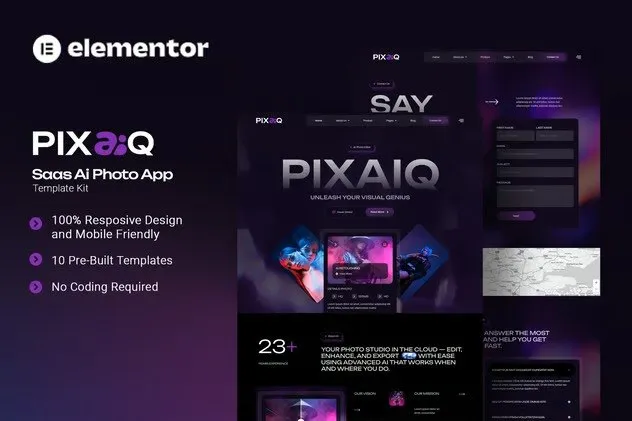
Pixaiq is a modern and intuitive Elementor Template Kit designed for AI-powered photo editing SaaS platforms. Ideal for startups, creative tech companies, and digital photo enhancement services, this kit helps you showcase advanced features, demonstrate real-time editing capabilities, and promote seamless, user-friendly image transformation tools with style and professionalism. Pixaiq uses free elements, so don’t worry about trying this one. Pixaiq provides various pages including Home, About Us, Team, Product, Pricing, Testimonials, FAQs, 404, Blog, Contact Us.
Templates
- Home
- About Us
- Team
- Product
- Pricing
- Testimonials
- FAQs
- 404
- Blog
- Contact Us
Font Used
Plugins installed with kit
- Elementor
- ElementsKit Lite
- The Plus Addons For Elementor
- Metform
- Ultimate Addons for Elementor Lite
How to Import MetForm Custom Form:
- While edititing a page where a form should appear, open the Elementor navigator to locate the Metform widget.
- Click Edit Form in the builder panel.
- Select New, leave blank selected then click Edit Form button.
- Click ‘Add Template’ grey folder button.
- Click ‘My Templates’ tab.
- Choose your imported MetForm template, then click ‘Insert’.
- Once the template is loaded, click ‘Update’.
Setup Header in ElementsKit Lite
If you have Elementor Pro, setup headers and footers in Theme Builder. Pages you create with Elementor must have the Page Layout set to Elementor Full width for the global header and footer to appear.
- Go to ElementsKit > Header Footer
- If prompted to go through the wizard, click Next all the way through and then return to step 1 (you are not required to enter your email address or share your information)
- Click Add New Template button at the top
- Name your template, then toggle “Activate/Deactivate:” to On
- Click the gray Edit Content button. Elementor will open.
- Click the gray folder icon to access My Templates tab and Insert the header or footer template.
- Customize and Publish









Reviews
There are no reviews yet.