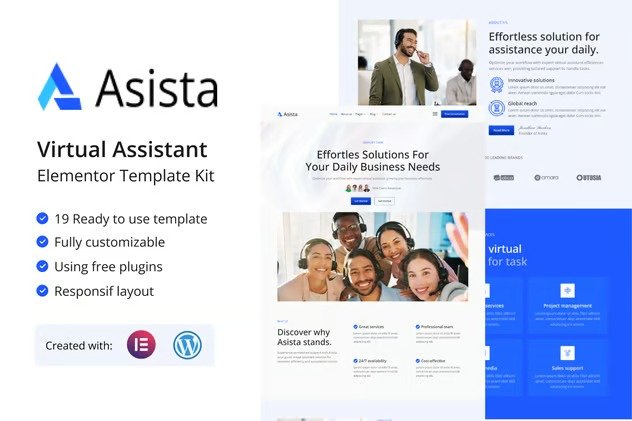
Introducing Asista (THIS IS A NOT WORDPRESS THEMES), the premier Elementor Template Kit designed for Virtual Assistant services, now available for WordPress and Elementor Free. Tailored for virtual assistants, remote professionals, and freelance administrative experts, Asista combines sleek design with intuitive functionality to help you build a polished, professional online presence effortlessly.
With Asista, you can showcase your services, expertise, and client solutions through modern layouts that highlight your administrative skills, organizational capabilities, and personalized support. Whether you specialize in scheduling, email management, project coordination, or business support, this template kit is crafted to communicate your value effectively.
Asista features clean and responsive design elements, service overview sections, testimonials, pricing tables, and easy-to-use contact forms. It’s perfect for solo virtual assistants or VA agencies looking to attract entrepreneurs, small businesses, and busy professionals in need of reliable remote support.
More than just a template, Asista is a comprehensive toolkit for building credibility and expanding your reach. Its user-friendly customization options allow you to align the website with your brand, ensuring your unique personality and professionalism shine through.
Leverage the power of WordPress and Elementor Free with Asista to elevate your virtual assistant business. Create a website that speaks directly to your clients’ needs and positions you as the go-to solution for their administrative challenges. Start growing your VA business with Asista today!
Suitable For:
- Creative Professionals
- Bloggers & Online Influencers
- Startups & Tech Businesses
Features:
- Compatible with Free Plugins (Elementor Pro Not Required)
- Professional, Clean Design
- Modern design based on design system
- 19 Ready to use Templates
- Fully Responsive Layout
- Fully Customizable
- Cross Browser Compatibility: Chrome, Firefox, Safari, Opera
- Global Styles – customize fonts and colors in one place
Templates Included :
- Home
- AboutUs
- Services
- Team
- Pricing
- Career
- FAQ
- Error 404
- Design Guideline
- Blog
- Single Post
- Contact Us
- Header
- Footer
- Contact Form (MetForm)
- Subscribe Form (MetForm)
- Subscribe Blog Form(MetForm)
- Single Post Form (MetForm)
- General Form (MetForm)
Required Plugins :
- Elementor
- Elementskit Lite
- MetForm
- Sticky Header Effects for Elementor
Creating pages
- Go to Pages and create a new page and click Edit with Elementor
- Click the gear icon at lower-left of the builder to view page settings and choose Elementor Full Width and hide page title
- Click the gray folder icon to access My Templates tab and then Import the page you’d like to customize.
- The home page is set under Settings > Reading by selecting Static Front Page.
If you have Elementor Pro, headers and footers are customized under Templates > Theme Builder.
How to Import Metforms
If you have Elementor Pro, skip install of Metform and form blocks.
- Import the metform block templates
- Import the page template where the form appears and right-click to enable the Navigator
- Locate and select the Metform widget and click Edit Form. Choose New, then Edit Form. The builder will appear
- Click ‘Add Template’ grey folder icon.
- Click ‘My Templates’ tab.
- Choose your imported metform template, then click ‘Insert’ (click No for page settings).
- Once the template is loaded, make any desired customizations and click ‘Update & Close’ The form will appear in the template
- Click Update
Setup Global Header and Footer in ElementsKit
If you have Elementor Pro, headers and footers may be customized under Theme Builder.
- Import the header and footer template
- Go to ElementsKit > Header Footer and click Add New (if prompted with a wizard, you may click Next through it without taking any action)
- Title the header, leave Entire Site selected and toggle Activation to On
- Click the gray Edit Content button to load the builder
- Click the gray folder icon and select the header template to import, select your menu in the nav element and click Update.
- Repeat for Footer






Reviews
There are no reviews yet.