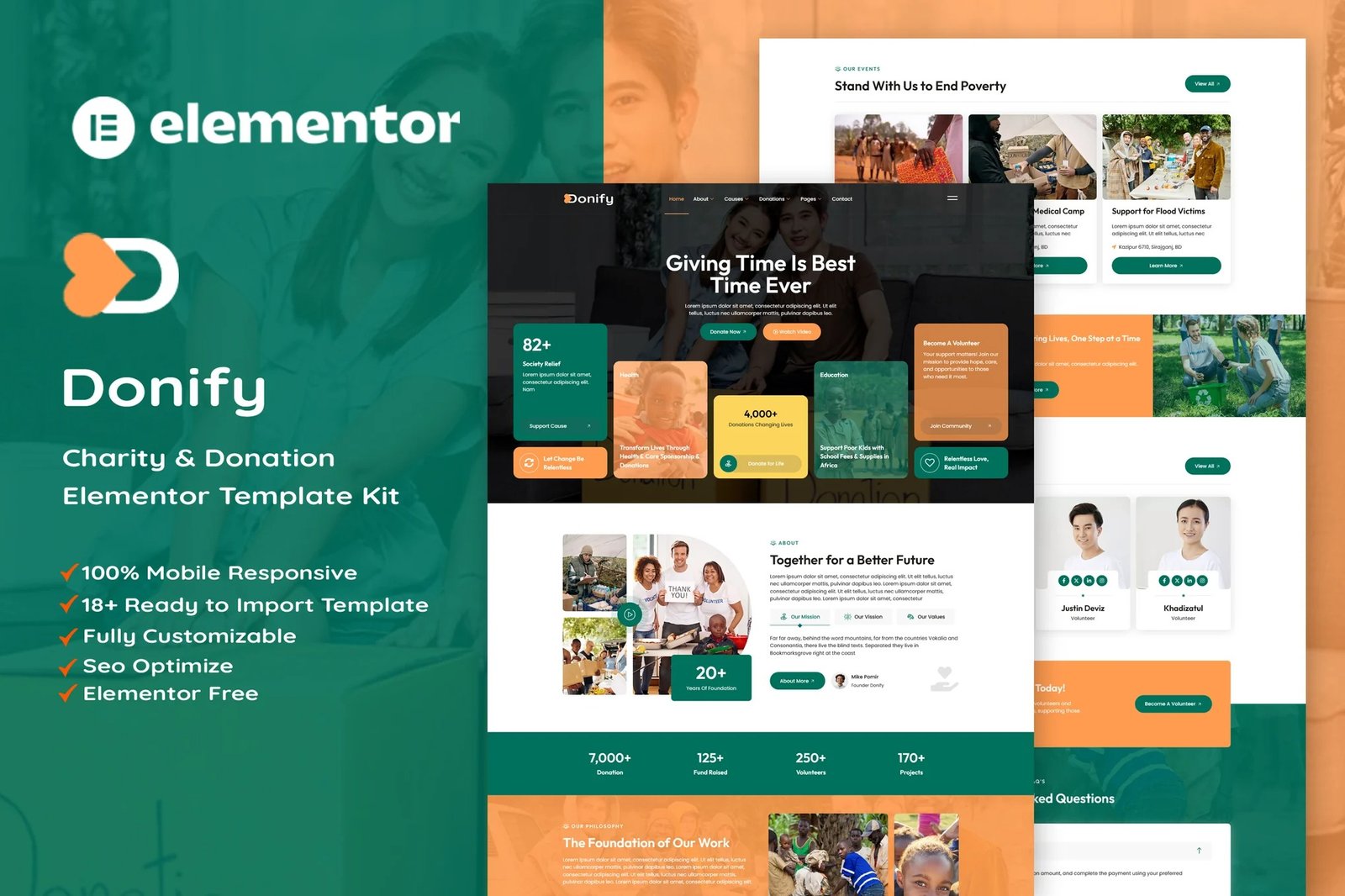
Donify ? Charity & Donation is an Elementor Template Kit designed specifically for all Charity & Donation services website. Donify have complete template package to launch your Charity & Donation website. Donify has a clean and professional design with a 100% responsive layout, retina-ready, and very easy to customize because using Elementor so you don?t need a single line of coding!
This Template Kit contains page content for creating Elementor pages. This kit has been optimized for use with the free ?Hello Elementor? theme.
Layout Features :
- Modern and Professional design
- Cross Browser Compatibility
- Using Free Plugins (Elementor Pro is not required)
- 100% Responsive & mobile-friendly
- 18+ Page templates ready to use
- Customize fonts and colors in one place (Global Kit Style)
What?s Included in the Zip :
- Home
- About
- Volunteer
- Causes
- Cause Details
- Donation
- Donation Details
- Services
- Blog
- Single Post
- Contact
- FAQ
- 404 Error
- Header V1
- Footer V1
- Metform ? Contact
- Metform ? Newsletter
- Off-Canvas Menu
Plugins installed with kit
- Elementor
- ElementsKit Lite
- Jeg Elementor Kit
- Give ? Donation Plugin
- GiveWP Donation Widgets for Elementor
- Skyboot
- MetForm
How to setup header in Jeg Elementor Kit plugin
If you have Elementor Pro, setup headers and footers in Theme Builder. Pages you create with Elementor must have the Page Layout set to Elementor Full width for the global header and footer to appear.
- Go to Jeg Elementor Kit menu item > Header Template
- Click Add New Header
- Add condition > All Site and click Create
- Click the pencil icon to Edit and elementor will appear
- Click gray folder icon to access My Templates tab
- Insert the header template.
- Customize and Save.
How to Import MetForm Custom Form:
- While edititing a page where a form should appear, open the Elementor navigator to locate the Metform widget.
- Click Edit Form in the builder panel.
- Select New, leave blank selected then click Edit Form button.
- Click ?Add Template? grey folder button.
- Click ?My Templates? tab.
- Choose your imported MetForm template, then click ?Insert?.
- Once the template is loaded, click ?Update?.
GiveWP
To accept donations and display goals, a form must be created in GiveWP and your goal set. Select the corresponding form ID in the GiveWP widgets to display goal progress or forms.








Reviews
There are no reviews yet.