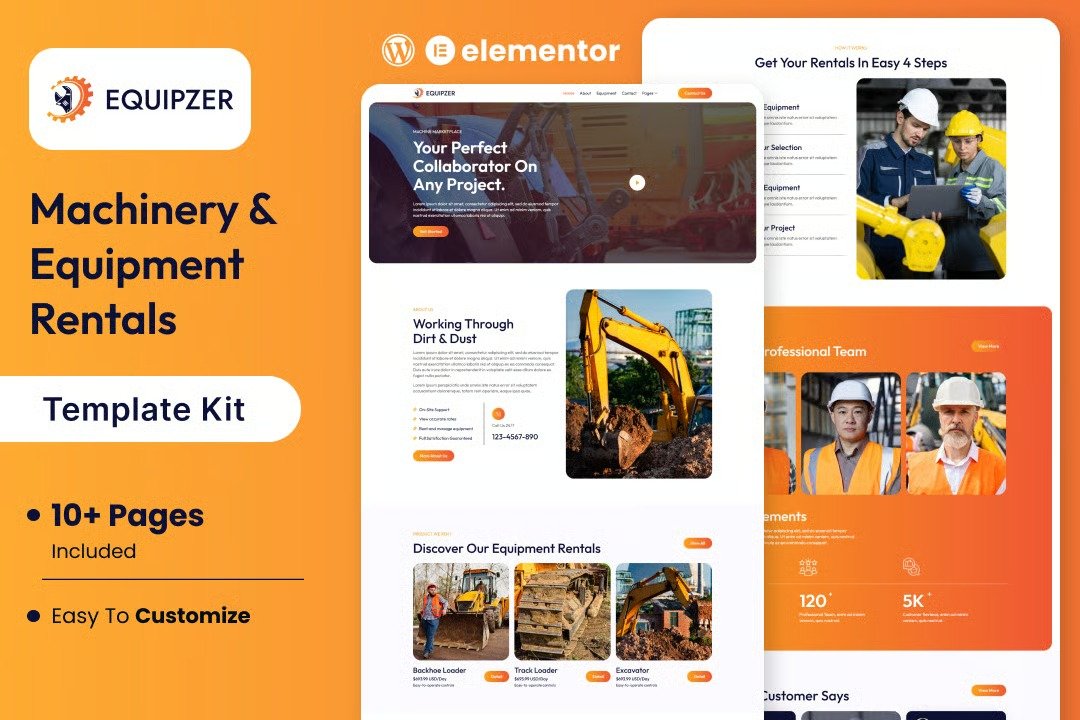
Equipzer is a premium Elementor template kit designed specifically for heavy construction machinery rental companies. Featuring a sleek, modern design, it offers an intuitive layout that highlights your services, fleet, and expertise. Equipzer includes pre-designed pages for showcasing equipment, pricing, client testimonials, and contact details, all optimized for a seamless user experience. Fully responsive and easy to customize, this template kit empowers you to create a professional online presence that drives engagement and boosts rentals. Perfect for businesses seeking to elevate their digital branding with minimal effort!
Feature
- Individual elements can be fine-tuned or fonts and colors can be changed all in one spot.
- Drag-and-drop visual builder for true no-code customization.
- Design that is both contemporary and professional.
- Fast-loading.
- Most Elementor themes are compatible with this templatekit.
Templates Include:
- Home
- About us
- Equipment
- Contact us
- Services
- Testimonials
- Team
- Blogs
- Blogs Details
- Coming Soon
- 404
Sections and Blocks:
- Message Form
- Newsletter Form
- Coming newsletter Form
Required Plugins Pre-Installed With the Kit
- Elementor
- Happy Elementor Addons
- ElementsKit Lite
- Metform
- The metform block templates should be imported.
- Import the page template with the form on it and enable the Navigator by right-clicking.
- Click Edit Form after locating and selecting the Metform widget. Then select New and Edit Form from the drop-down menu. The function Object() { [native code] } will show up.
- Select the grey folder icon that says ?Add Template?.
- Select the ?My Templates? option from the drop-down menu.
- Then click ?Insert? after selecting your imported metform template (click No for page settings).
- After you?ve finished customizing the template, click ?Update & Close.? In the template, the form will appear.
- Update the information by clicking the button.
- Import the template for the header and footer.
- Navigate to ElementsKit > Header Footer and select Add New (if prompted with a wizard, you may click Next through it without taking any action).
- Toggle Activation to On, title the header, and leave Entire Site selected.
- To open the builder, click the grey Edit Content button.
- Select the header template to import by clicking the grey folder icon, then select your menu in the nav element and click Update.
- Repeat for the footer.







Reviews
There are no reviews yet.