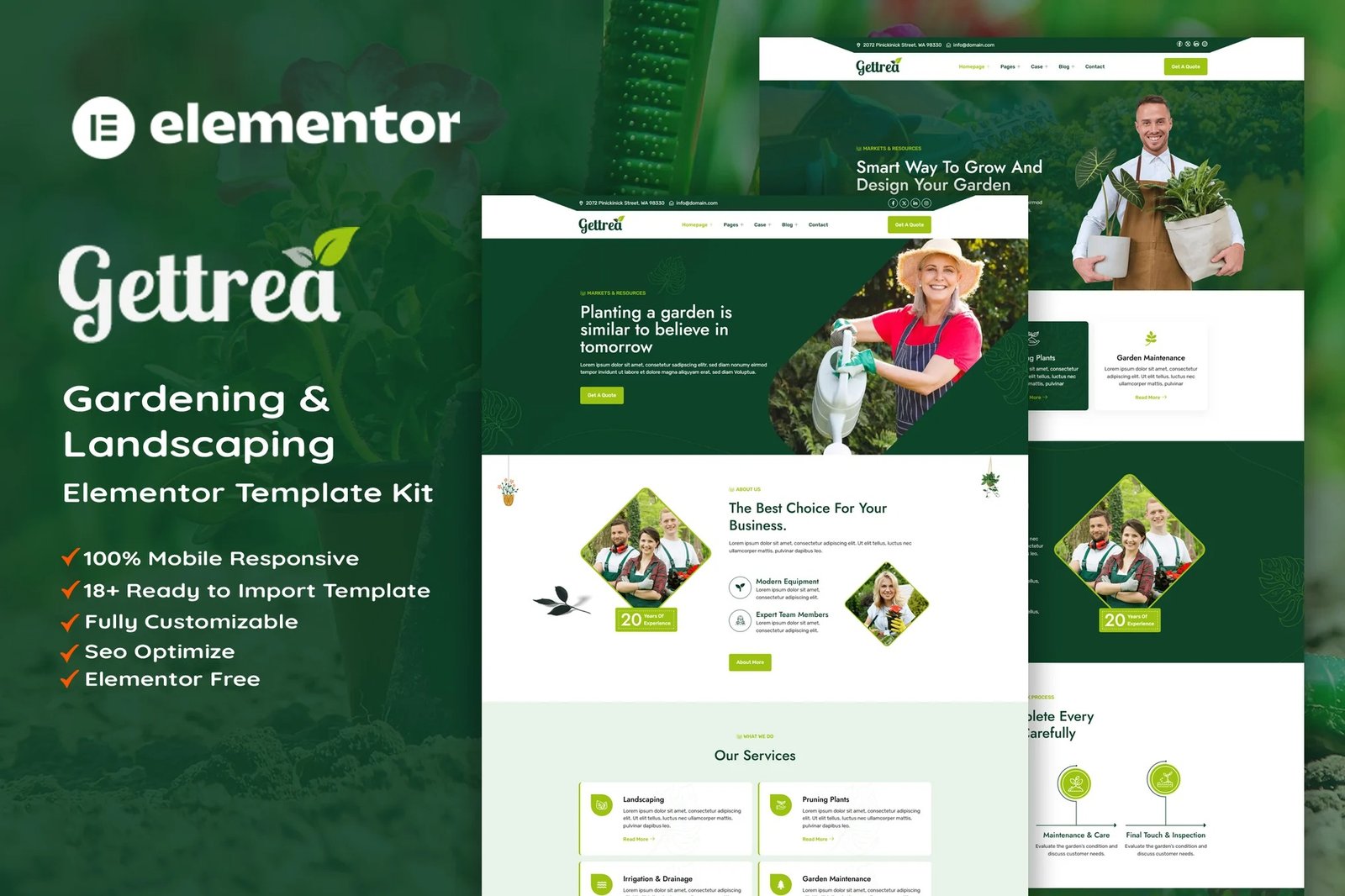
Gettrea ? Gardening & Landscaping is an Elementor Template Kit designed specifically for Landscaping, Gardening, Groundskeeping, Lawn Services, Florists, Flower Shops and any company in need of a sleek online presence. Gettrea have complete template package to launch your Gardening & Landscaping business Website. Gettrea has a clean and professional design with a 100% responsive layout, retina-ready, and very easy to customize because using Elementor so you don?t need a single line of coding!
This Template Kit contains page content for creating Elementor pages. This kit has been optimized for use with the free ?Hello Elementor? theme.
Layout Features :
- Modern and Professional design
- Cross Browser Compatibility
- Using Free Plugins (Elementor Pro is not required)
- 100% Responsive & mobile-friendly
- 18+ Page templates ready to use
- Customize fonts and colors in one place (Global Kit Style)
What?s Included in the Zip :
- Home 01
- Home 02
- About us
- Team Members
- Services
- Service Details
- Projects
- Case Study
- Case Single
- Contact
- Blog
- Blog Details
- FAQs
- Error 404
- Header V1
- Footer V1
- Metform ? Contact
- Metform ? Newsletter
Plugins installed with kit
- Elementor
- ElementsKit Lite
- Skyboot
- MetForm
Creating pages
- Go to Pages and create a new page and click Edit with Elementor
- Click the gear icon at lower-left of the builder to view page settings and choose Elementor Full Width and hide page title
- Click the gray folder icon to access My Templates tab and then Import the page you?d like to customize.
- The home page is set under Settings > Reading by selecting Static Front Page.
How to Import Metforms
If you have Elementor Pro, skip install of Metform and form blocks.
- Import the metform block templates
- Import the page template where the form appears and right-click to enable the Navigator
- Locate and select the Metform widget and click Edit Form. Choose New, then Edit Form. The builder will appear
- Click ?Add Template? grey folder icon.
- Click ?My Templates? tab.
- Choose your imported metform template, then click ?Insert? (click No for page settings).
- Once the template is loaded, make any desired customizations and click ?Update & Close? The form will appear in the template
- Click Update
Setup Global Header and Footer in ElementsKit
If you have Elementor Pro, headers and footers may be customized under Theme Builder.
- Import the header and footer template
- Go to ElementsKit > Header Footer and click Add New (if prompted with a wizard, you may click Next through it without taking any action)
- Title the header, leave Entire Site selected and toggle Activation to On
- Click the gray Edit Content button to load the builder
- Click the gray folder icon and select the header template to import, select your menu in the nav element and click Update.
- Repeat for Footer










Reviews
There are no reviews yet.