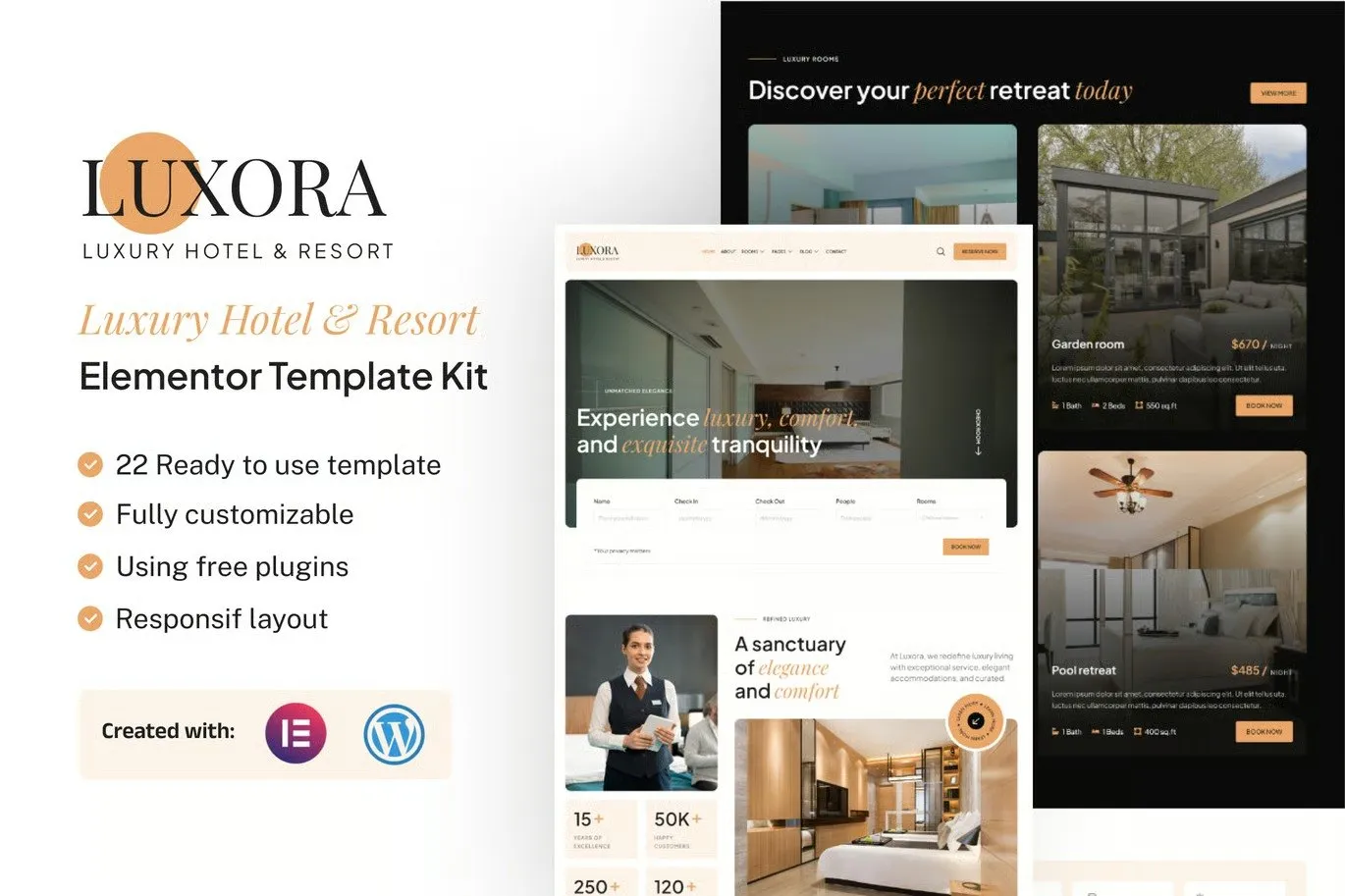
Introducing Luxora (THIS IS A NOT WORDPRESS THEMES) the ultimate template kit designed exclusively for Luxury Hotels & Resorts, now available for WordPress and Elementor Free. Crafted for high-end hotels, opulent resorts, and exclusive getaways, Luxora combines the simplicity of Elementor Free with the reliability of WordPress to deliver a stunning online presence that reflects the elegance and sophistication of your brand.
Luxora empowers you to create a captivating and refined website that showcases your accommodations, amenities, and guest experiences. This template kit is meticulously designed to meet the unique needs of the luxury hospitality industry, offering an immersive platform to highlight your suites, spa services, fine dining options, and breathtaking locations.
With Luxora, your website becomes a digital escape that mirrors the luxury of your property, featuring modern design elements, elegant layouts, and interactive features that invite guests to explore. From photo galleries that capture your spaces in exquisite detail to easy-to-use booking forms and guest testimonials, every element is crafted to attract discerning travelers.
More than just a template, Luxora is a versatile toolkit that adapts to the dynamic demands of the luxury hospitality sector. Whether you cater to honeymooners, corporate travelers, or relaxation seekers, Luxora provides the tools to present your resort’s offerings and build anticipation for a memorable stay.
Enhance your online presence with the power of WordPress and Elementor Free. Choose Luxora to create a website that exudes luxury and sets the standard for five-star hospitality. Let Luxora be the digital doorway to your world-class experiences, captivating visitors from their first click.
Suitable For:
- Luxury Hotel
- Resort
- Travel Accomodations
Features:
- Compatible with Free Plugins (Elementor Pro Not Required)
- Unique & Clean Design
- Modern design based on design system
- 22 Ready to use Templates
- Fully Responsive Layout
- Fully Customizable
- Cross Browser Compatibility: Chrome, Firefox, Safari, Opera
Templates Included:
- Global Theme Style
- Home
- About
- Room List
- Room Detail
- Reservation
- Amenities
- Gallery
- Our Staff
- Review
- Career
- FAQ
- 404 Error
- Blog
- Single Post
- Contact
- Header
- Footer
- Contact Form (MetForm)
- Subscribe Form (MetForm)
- Review Form (MetForm)
- Notif Offer Form (MetForm)
- Reservation Form (MetForm)
Required Plugin(included):
- Elementor
- Elementskit Lite
- Gum Elementor Addon
- MetForm
- Sticky Header Effects for Elementor
Creating pages
- Go to Pages and create a new page and click Edit with Elementor
- Click the gear icon at lower-left of the builder to view page settings and choose Elementor Full Width and hide page title
- Click the gray folder icon to access My Templates tab and then Import the page you’d like to customize.
- The home page is set under Settings > Reading by selecting Static Front Page.
How to Import Metforms
If you have Elementor Pro, skip install of Metform and form blocks.
- Import the metform block templates
- Import the page template where the form appears and right-click to enable the Navigator
- Locate and select the Metform widget and click Edit Form. Choose New, then Edit Form. The builder will appear
- Click ‘Add Template’ grey folder icon.
- Click ‘My Templates’ tab.
- Choose your imported metform template, then click ‘Insert’ (click No for page settings).
- Once the template is loaded, make any desired customizations and click ‘Update & Close’ The form will appear in the template
- Click Update
Setup Global Header and Footer in ElementsKit
If you have Elementor Pro, headers and footers may be customized under Theme Builder.
- Import the header and footer template
- Go to ElementsKit > Header Footer and click Add New (if prompted with a wizard, you may click Next through it without taking any action)
- Title the header, leave Entire Site selected and toggle Activation to On
- Click the gray Edit Content button to load the builder
- Click the gray folder icon and select the header template to import, select your menu in the nav element and click Update.
- Repeat for Footer





Reviews
There are no reviews yet.