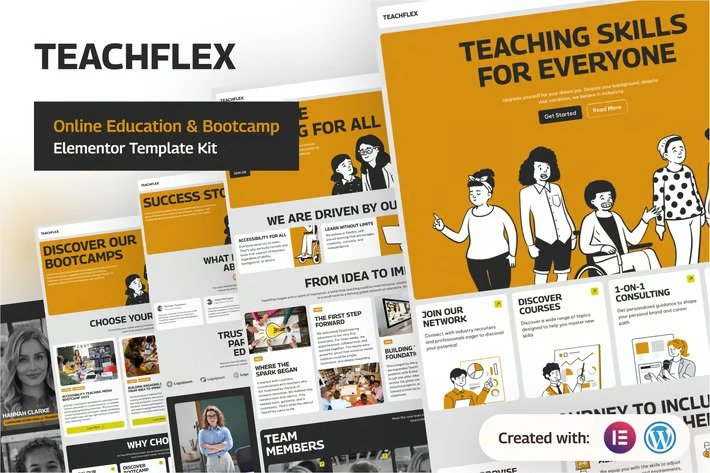
TeachFlex is a clean, flexible, and accessibility-minded template kit for online learning platforms, bootcamps,
training centers, and educators. Built to help you design online education, bootcamps and learning experiences
that look
professional and include every learner, TeachFlex combines modern layouts, thoughtful UX, and ready-to-use
sections that speed up your launch.
Why Choose TeachFlex
TeachFlex is purpose-built for educators and training teams who need a fast, reliable way to publish inclusive
bootcamp sites. Rather than shipping a generic design, this kit provides bootcamp-first templates, pricing and
testimonial layouts, and accessibility-minded patterns so your site communicates trust and supports every
learner. You get modular sections that are easy to customize with Elementor, consistent visual language for
brand clarity, and practical UX that guides visitors from discovery to enrollment.
Key Features
- Inclusive by Design – patterns and components created with accessibility best practices in
mind. - Flexible Layout System – modular sections that let you mix, match, and scale quickly.
- Bootcamp-First UX – templates optimized for bootcamp, single bootcamp pages,
testimonials, pricing
and contact pages. - Responsive & Fast – mobile-ready layouts with careful typography and spacing for
readability. - Visual Consistency – energetic yet professional style that supports education brands.
- Easy to Customize – built for Elementor; edit colors, type, sections, and content with no
code.
Perfect For
- Online Bootcamp creators and instructors
- Bootcamps and training programs
- Schools, academies, and education startups
- Corporate learning teams and L&D professionals
Templates Included
This kit includes a full set of page templates and blocks used across the demo. The list below reflects the pages
provided:
- Home
- About Us
- Bootcamp
- Bootcamp Details
- Blog List (All Posts)
- Blog Details (Single Post)
- Testimonials
- Pricing
- FAQ
- Contact
- 404 Page
- Header (Global block)
- Footer (Global block)
- Contact Form (Block)
- Registration Form (Block)
Fonts:
This template kit uses free Google Fonts: Georama and Be Vietnam Pro. Both
fonts are
web-safe and easy to customize via Elementor’s typography settings.
Required Plugins:
To import and use the kit as shown in the demo, the following plugins are required (these are the minimum
suggested plugins):
- Elementor
- ElementsKit Lite
- Jeg Elementor Kit
- MetForm
- Skyboot Custom Icons for Elementor – Elementor Icons library
How to Import Header, Footer and Block
The imported templates are automatically categorized by Elementor in the Page or Section type. But not all
categorization is appropriate, you need to adjust it to fit when used. One type of Section that needs to be
adjusted is a template built using ElementsKit. The simple way to import Header and Footer templates is directly
through the ElementsKit menu. If you have Elementor Pro, setup headers and footers in Theme Builder
- Go to ElementsKit > Header Footer.
- Add a template title, then set it as Header or Footer, then activate the template, and click Edit
Content. - Click the Add Template button.
- Open the My Templates tab, then click Insert on the appropriate form
template. - Click the Update button, the form template should be successfully imported.
How to import Metform custom form:
- Import Metform section templates first, then import the pages the forms appear in.
- Use the Elementor navigator to select the Metform Widget and click Edit Form in the builder
panel. - Select New and click Edit Form button at the bottom.
- Click the gray folder icon “Add Template”.
- Click My Templates tab.
- Choose your imported form template, then click Insert.
- Once the template is loaded, customize the form settings, then click Update & Close.
What should I do if the icons don’t appear?
This template kit uses the Skyboot Custom Icons for Elementor — Elementor Icons Library plugin.
If icons are missing after import, please follow these steps:
- Go to Skyboot Icons > Manage Icons in your WordPress dashboard.
- We recommend disabling all icon packs and enabling only “Material Design
Icons”. - Click Save Changes.
- Refresh your website (hard refresh recommended). The icons should now appear.





Reviews
There are no reviews yet.